Vendor Document Data
Reports > Accounting > Vendor Document Data
The Financial Data Report presents detailed information on accounting.
-
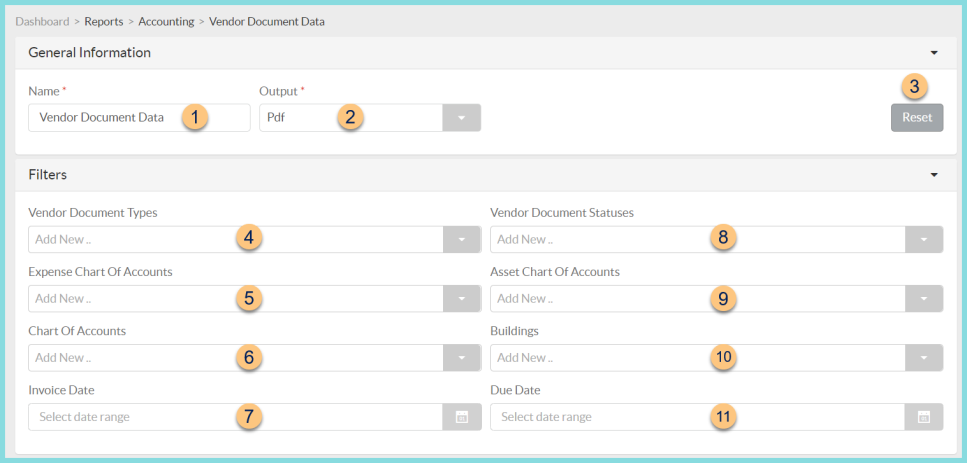
Name - enter a report name
Default: Vendor Document Data -
Output - select output format
Csv, Excel, Html, Json, or Pdf (default)
Template (not pictured) - select a report template -
Reset - click to reset to default options
-
Vendor Document Types - filter by document type (Bill, Credit Memo)
-
Expense Chart of Accounts - filter by expense account
-
Chart of Accounts - filter by account
-
Invoice Date - filter by invoice date
-
Vendor Document Statuses - filter by document status(es)
-
Asset Chart of Accounts - filter by asset account
-
Buildings - filter by building(s)
-
Due Date - filter by due date
-
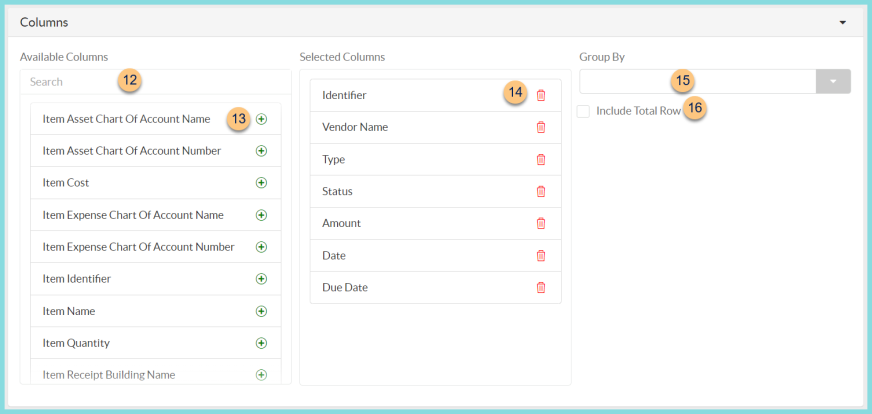
Search - search for available columns
Note: Columns are defined below -
(+) - click or drag and drop to move available sort columns to the Selected Columns field
-
Drag and Drop to rearrange Selected Columns or click the Trash Can to remove a column from the selected columns field
-
Group By - choose one of the available column types to insert pages breaks at changes in value of the selected field
-
Include Total Row - check to include a total row at the bottom of the report
-
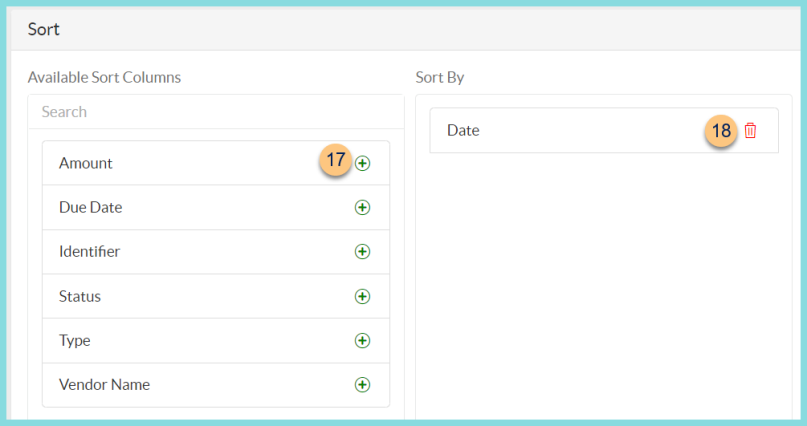
(+) - click or drag and drop to move available sort columns to the Sort By field
Note: Columns selected in step 49 are available for sorting. -
Drag and Drop to arrange Sort By columns in order of sort priority or click the Trash Can to remove a field
-
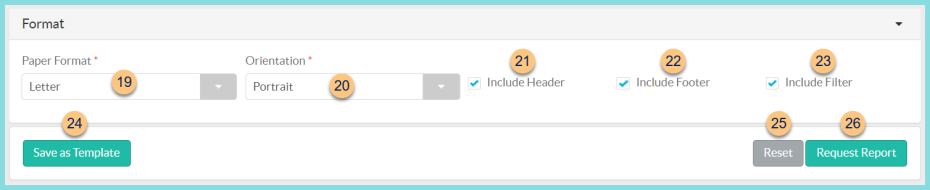
Paper Format - choose a paper format
CR80
Legal
Letter (default) -
Orientation - choose orientation
Landscape
Portrait (default) -
Include Header - check to display report header on PDF or header row on CSV
-
Include Footer - check to display report footer on PDF
-
Include Filter - check to display selected filters on PDF
-
Save as Template - click to save the selected filters and columns as a template
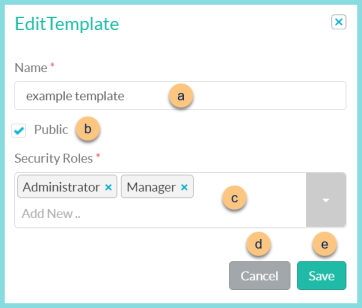
-
Name - enter a template name
-
Public - check to make the template available to other users
-
Security Roles - select the security roles that can access a Public template
-
Cancel - click to return to the previous screen without saving the template
-
Save - click to save the template
-
Reset - click to reset to defaults
-
Request Report - click to request report
Note: Report will appear in the bell icon when complete
Column Definitions
| Column | Definition |
|---|---|
| Amount | Document Amount |
| Date | Document Date |
| Due Date | Document Due Date |
| Identifier | Vendor Document Identifier |
| Item Asset Chart of Account Name | Item Asset Chart of Account Name |
| Item Asset Chart of Account Number | Item Asset Chart of Account Number |
| Item Cost | Item Cost |
| Item Expense Chart of Account Name | Item Expense Chart of Account Name |
| Item Expense Chart of Account Number | Item Expense Chart of Account Number |
| Item Identifier | Item Identifier |
| Item Name | Item Name |
| Item Quantity | Item Quantity |
| Item Receipt Building Name | Item Receipt Building Name |
| Item Receipt Building Number | Item Receipt Building Number |
| Item Receipt Identifier | Item Receipt Identifier |
| Item Receipt Received Date | Item Receipt Received Date |
| Item Received Quantity | Item Received Quantity |
| Item Total | Item Total |
| Item Vendor Identifier | Item Vendor Identifier |
| Ledger Chart of Account Name | Ledger Chart of Account Name |
| Ledger Detail Amount | Ledger Detail Amount |
| Ledger Detail Building Name | Ledger Detail Building Name |
| Ledger Detail Building Number | Ledger Detail Building Number |
| Payment Term | Payment Term |
| Status | Status |
| Total Amount | Total Amount |
| Total Item Cost | Total Item Cost |
| Total Item Quantity | Total Item Quantity |
| Total Item Received Quantity | Total Item Quantity Received |
| Total Item Total | Total Item Total |
| Type | Type |
| Unique Identifier | |
| Vendor Name | Vendor Name |
| Vendor Number | Vendor Number |